Understand RoughCut Settings
The four Settings tabs, what Save Configuration writes, where secrets go instead, and how a setting is resolved.
RoughCut Settings has four tabs. Basic shows eighteen curated keys, Full shows every setting grouped under LLM, Pipeline v2, Transcription, Evals and System, Models & Data covers the speech model and storage, and License covers the trial, the one-time unlock and Pro. The app language menu sits in the Settings header on every tab behind a globe icon and relaunches RoughCut immediately; a row on Basic makes the same change and defers the relaunch behind a Relaunch Now button. Save Configuration writes only values that differ from the shipping default, and removes a key from the file once you set it back. Secrets never go in that file: each key field has its own Save button and goes straight to the macOS Keychain. The modified badge means differs from the shipping default, not unsaved. A setting resolves as schema default, then config file, then per-job override. Keep the defaults unless a documented problem calls for a change.
On this page
The four tabs
The Settings window puts everything behind four tabs, selected from a segmented control at the top.
| Tab | What it holds | Who it is for |
|---|---|---|
Basic | The app language row, then eighteen curated settings — the AI provider and its keys, models and timeouts, the main silence and editor knobs, and the evaluation basics. | Everyone. |
Full | Every setting the app has, grouped under LLM, Pipeline v2, Transcription, Evals, and System. | Advanced use. See Advanced settings reference. |
Models & Data | The speech model, the exemplar bank, the golden-set folder, and storage. | Setup and housekeeping. See Manage models, data, jobs, and storage. |
License | Free cuts remaining, the one-time unlock, the optional Pro subscription, Restore Purchases, and the legal links. | See Trial, unlock, and Pro. |
Basic is a subset of Full, not a different set of settings. A key shown on both tabs is the same key, and editing it in either place has the same effect.
The language switch is always in the header
The app language control sits in the Settings header, visible on every tab, behind a globe icon labelled with the current language. It is deliberately not buried in one tab, so you can find it no matter where you are.
There are two ways to change it, and they behave differently:
- The header menu applies the change and relaunches RoughCut immediately.
- The
App languagerow onBasicapplies the change but defers the restart. It showsTakes effect after RoughCut relaunches.with aRelaunch Nowbutton, so you can finish what you were doing first.
Either way, RoughCut must relaunch to switch the interface language and the layout direction. See Switch between English and Arabic.
The caption under that row is worth reading before you touch it: the language of transcripts always follows the video itself, not this setting. This control changes the app's interface only.
What Save Configuration actually writes
Save Configuration sits in the Settings header and is available from every tab. What it writes is narrower than most people expect.
It writes only the values that differ from the shipping default. A setting you have left alone is not written at all. More importantly, a setting you change and then change back is removed from the configuration file rather than being stored as an explicit copy of the default.
That design has a practical consequence: your configuration file is a record of your deviations, not a snapshot of your settings. If a future version of RoughCut ships a different default for a key you never touched, you get the new default. If you had pinned that key to its old value deliberately, you keep your value.
On success the window confirms with Configuration saved. A failure is reported as Could not save configuration: … and is never silent.
Keys and other secrets go to the Keychain instead
API keys are not part of the configuration file, and Save Configuration never writes them. They are stripped before the file is written.
Every secret field has its own Save button, and pressing it stores the value immediately in the macOS Keychain. Four fields work this way: the Gemini API key, the OpenAI API key, and the two Langfuse keys.
The field shows you which state it is in:
- Not set — a secure text field with the prompt
Paste your key hereand an orangeNot setbadge. - Saved — a green check, a masked value, and the caption
Saved in Keychain, withReplace…andRemovebuttons.
A stored secret is never displayed back to you, in the app or anywhere else. If you have lost a key, you replace it; you cannot read it out of RoughCut.
Because secrets save independently, pressing Save Configuration is not needed after entering a key — and conversely, entering a key does not save your other pending changes. See Add your Gemini API key and Add your OpenAI API key.
The modified badge
A small blue modified capsule appears beside a setting whose current value differs from the shipping default.
It does not mean "unsaved". A value you saved months ago still shows the badge, and a value you just typed but have not saved does not lose it. Read the badge as "this is not the default any more" — it is the fastest way to see, on the Full tab, everything you have changed.
Secret fields never show the badge, whatever their state. Use the Not set / Saved in Keychain indicators for those instead.
How a setting is resolved
When RoughCut needs a value, it looks in exactly three places, in this order:
- The schema default — the value RoughCut ships with.
- The configuration file — your saved deviations, which override the default.
- The per-job override — what you chose on the job screen for this one job, which overrides both.
Later layers win, and a layer only wins when it actually has a meaningful value. Nothing else participates: there is no hidden profile, no server-side configuration, and no per-project file.
This is why the Fine-tune section of a job says its values override configuration defaults for this job only. Changing Min silence (sec) on one job does not change your saved default, and changing your saved default does not retroactively change a job you already ran.
Keep the defaults
The shipping defaults are the tested configuration. Change a setting when you have a specific, described problem that the setting is documented to address — not as routine tuning before your first run.
If a change makes things worse, the way back is straightforward: return the value to the one shown as the default, save, and the key disappears from your configuration file entirely.
The controls most people legitimately need are on the job screen, not in Settings: Recording environment, Bad-take removal, Transcription, and the Fine-tune fields. See Create your first rough cut.
Common mistakes
- Expecting
Save Configurationto store an API key. It does not, by design. Use the field's ownSavebutton. - Reading
modifiedas "unsaved". It means "differs from the default". - Tuning
Fullbefore running a single job. Run the defaults first, then change one thing at a time. - Changing a job's language expecting the interface to follow. They are separate controls.
- Expecting a language change without a relaunch. RoughCut restarts to apply it.
Troubleshooting
| Symptom | Likely cause | What to do |
|---|---|---|
| A change had no effect on a job | The job carries its own override for that value | Per-job settings win. Check the job screen's Fine-tune section. |
Could not save configuration: … | The configuration file could not be written | Check free disk space, then try again. |
| A key you entered is not being used | The field was not saved | Each secret field has its own Save. Look for the green Saved in Keychain state. |
| A setting reverted after an update | It matched the default, so it was never in your file | Set it explicitly again and save. |
| The language menu is not visible | Looking on the wrong part of the window | It is in the Settings header, on every tab, behind the globe icon. |
Still stuck? See Troubleshooting by symptom.
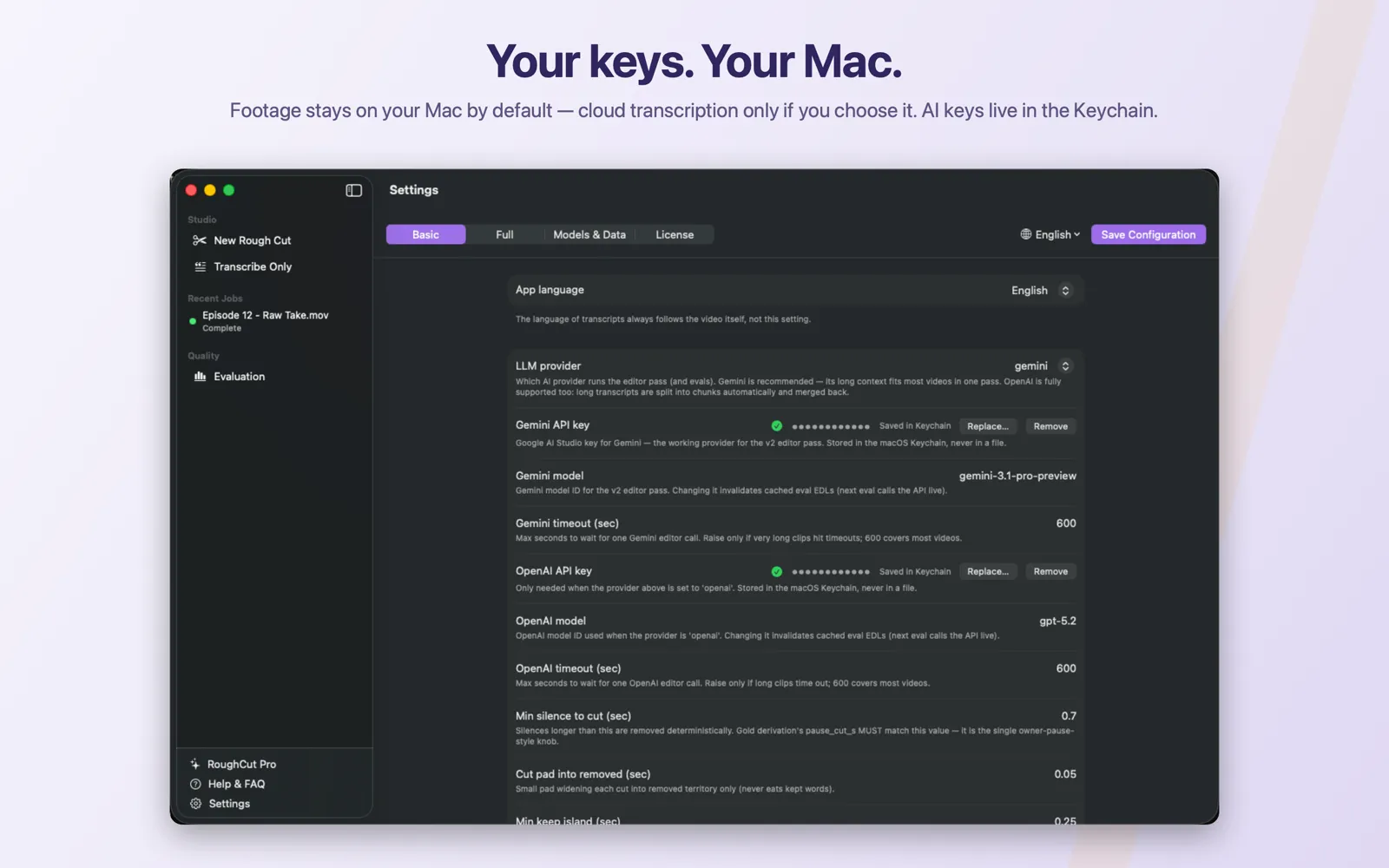
Save Configuration stay in the header on every tab.