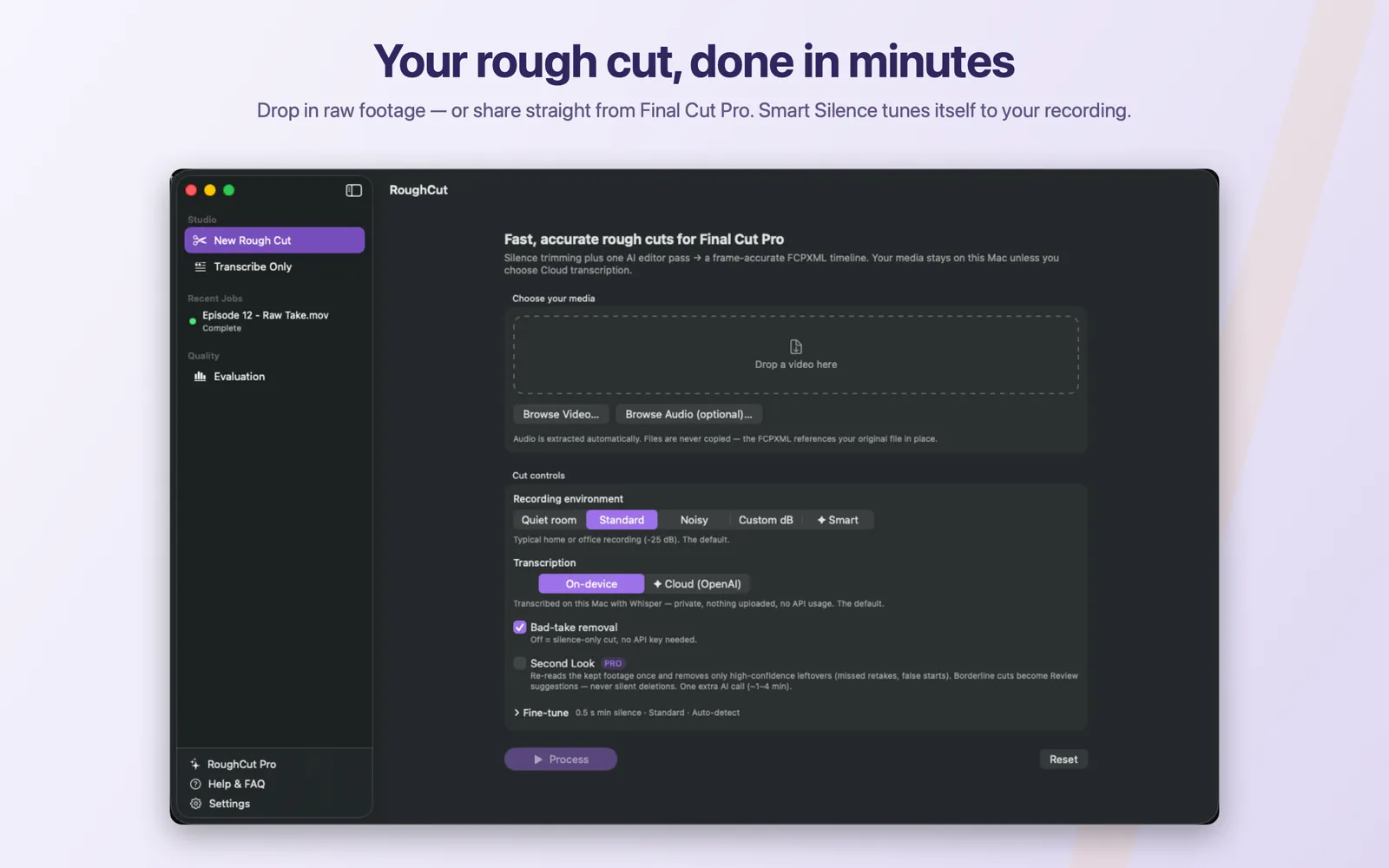
Create your first rough cut
Every control on the New Rough Cut screen, and the safest defaults for a first successful result.
Choose New Rough Cut in the sidebar, drop in a video, and leave the recommended defaults: Standard recording environment, On-device transcription, Bad-take removal on, Second Look off, Auto-detect language, and no video goal. Click Process and leave your source file where it is. RoughCut never copies or re-encodes your footage — the exported timeline references the original in place. A completed rough cut spends one of your five included runs, but only when it actually finishes: failed and cancelled jobs stay free, and Transcribe Only never counts. Every other control on the screen has its own page for when the defaults are not right for your recording.
On this page
Prerequisites
- The speech model installed, unless you are using Pro Cloud transcription. See Install the local speech model.
- An AI provider key only if you want bad-take removal. Silence-only cuts need no key.
- A supported video file. See Choose video and audio inputs.
Steps
- Choose
New Rough Cutin the sidebar, underStudio. - Drop a video onto the drop zone, or click
Browse Video…. The zone readsDrop a video here, andDrop to replace the videoonce a file is chosen. - Optionally click
Browse Audio (optional)…if you recorded a separate, cleaner microphone track. RoughCut analyses and transcribes that audio while the exported timeline still references your original video. - Leave
Recording environmentonStandard. That is −25 dB and suits typical home or office recordings. - Leave
TranscriptiononOn-device. Nothing is uploaded for transcription on this path. - Leave
Bad-take removalon if you have a provider key. Turn it off for a silence-only cut that needs no key. - Leave
Second Lookoff for a first run. It is a Pro refine pass and adds another AI call. - Leave
Fine-tunecollapsed. Its defaults are 0.5 s minimum silence,Standardaggressiveness,Auto-detectlanguage, and no video goal. - Click
Process. - Keep the source file where it is until you have exported and imported the result.
Expected result
The job moves through its stages and finishes with a review list of proposed cuts, then a Your rough cut is ready banner with an Export for Final Cut Pro… button.
The controls, in one place
| Control | Default | What it changes | Pro |
|---|---|---|---|
Recording environment | Standard (−25 dB) | How quiet counts as silence. Quiet room −35, Noisy −20, Custom dB, or Smart | Smart only |
Transcription | On-device | Whether audio is transcribed locally or by OpenAI | Cloud only |
Bad-take removal | On | Whether the AI editor pass runs at all | No |
Second Look | Off | A second AI read of the surviving footage | Yes |
Min silence (sec) | 0.5 | Pauses shorter than this survive | No |
Bad-take aggressiveness | Standard | How boldly the editor removes suspected bad takes | No |
Language | Auto-detect | Transcription language | No |
Video goal (optional) | empty | Editorial context, max 500 characters | Summarising only |
Second Look is disabled unless Bad-take removal is on, because it re-reads the result of the first AI pass.
Your original file is never touched
RoughCut states this on the screen itself: files are never copied, and the FCPXML references your original file in place. Nothing is transcoded, nothing is re-rendered, and no second copy of your footage is created. What RoughCut produces is a set of cut decisions.
How the trial counts
While you have not purchased the unlock, the screen shows <n> free cuts left. Five complete rough cuts are included.
A run is spent only when a job actually reaches a completed state. Specifically:
- Failed jobs do not count.
- Cancelled jobs do not count.
- Transcribe Only never counts, and is never gated by purchase at all.
The counter lives in the macOS Keychain, so it survives deleting and reinstalling the app, and nothing in the app lowers it.
Common mistakes
- Adding a separate audio file that is not synchronised. The audio track is used for analysis and transcription; if it drifts from the video, every cut time drifts with it.
- Moving or renaming the source file before importing. Final Cut Pro then reports the media as offline.
- Turning on
Second Lookfor a first job. Learn what the standard pass does before adding a refine pass. - Setting a custom dB value before trying the presets. The three presets cover most recordings.
- Expecting
Processto work with no model and no Pro. On-device transcription needs the model; the button stays disabled and tells you so.
Troubleshooting
Process disabled? Check in order: a video is selected; no red validation message is showing; the speech model is ready (or Cloud is selected); you have free cuts remaining or have purchased the unlock.
If the job fails, read the message before deleting anything — it names the cause. See Troubleshooting by symptom.