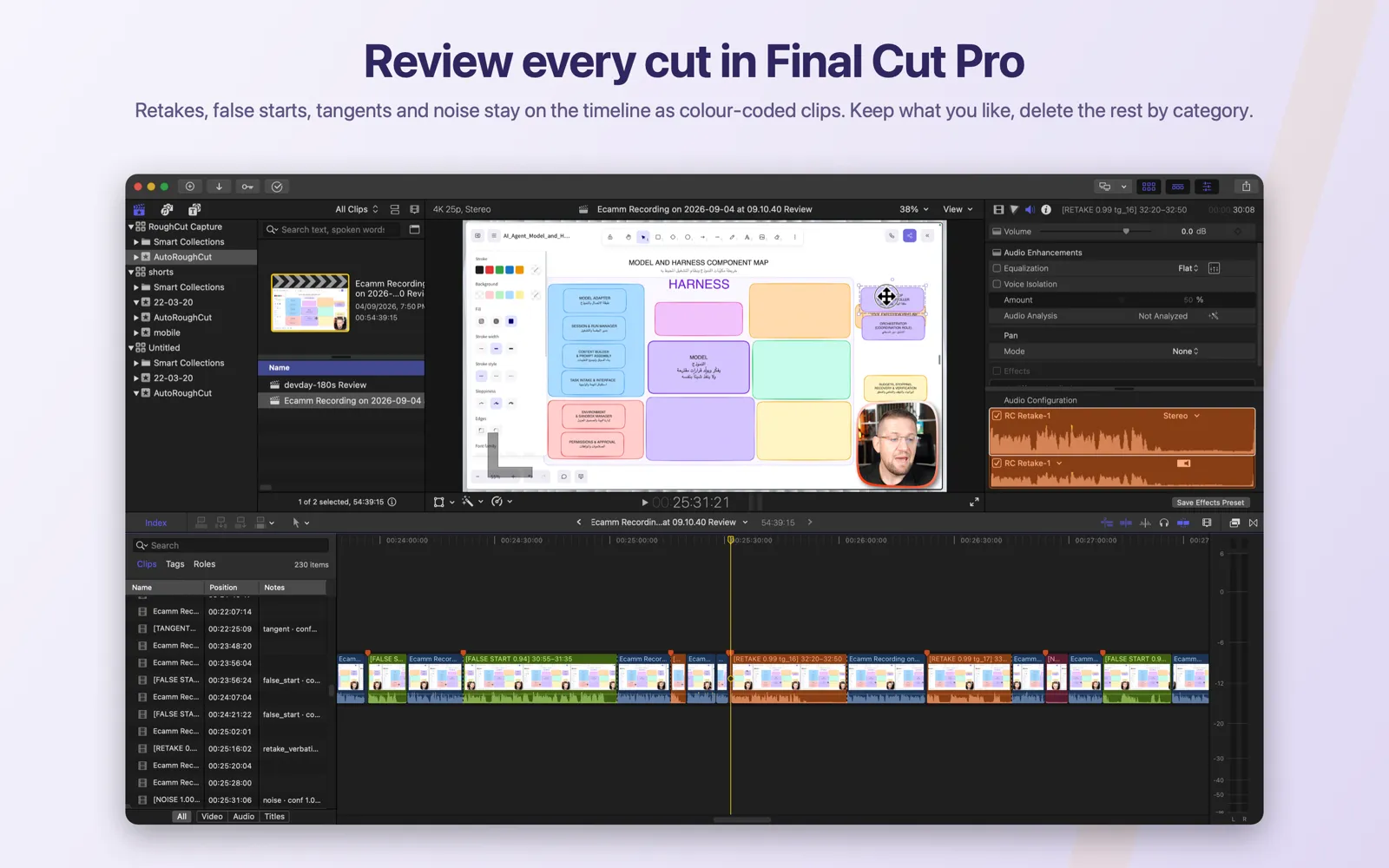
Review every cut in Final Cut Pro with the annotated review timeline
The Pro export where nothing is deleted — every RoughCut decision stays on the Final Cut Pro timeline as a colour-coded clip you delete by category or keep.
The annotated review timeline is a RoughCut Pro option on the New Rough Cut screen, available only while Bad-take removal is on. It adds a second FCPXML in which nothing is deleted. Kept speech sits on the Dialogue role, and every removal stays on the timeline as its own clip under an audio role named for its category — RC Retake, RC False Start, RC Tangent, RC Filler, RC Noise, RC Suggestion, and RC Silence when you ask for silences as clips. Final Cut Pro colour-codes each role on import. Each clip is named with its category, confidence, and take group, carries the editor's reason in its notes, and has a to-do marker. With silences excluded, which is the default, the Dialogue clips are the cleaned cut's clips frame for frame, so deleting every coloured clip leaves exactly the cleaned cut. In Final Cut Pro, search a role in the Timeline Index, select all, and press Delete to remove a whole category in one move. Export for Final Cut Pro saves the cleaned cut and then opens a second save dialog for the review timeline.
On this page
- Prerequisites
- Two timelines from one job
- Steps
- Expected result
- What the exported project contains
- Silences are already cut unless you ask for them
- Delete every coloured clip and you have the cleaned cut
- Delete a whole category in one move
- Where the two files come from
- Common mistakes
- Troubleshooting
Prerequisites
- RoughCut Pro, or one of your first five completed rough cuts, which include every Pro feature. Turning the option on without Pro opens the Pro paywall and leaves it off.
Bad-take removalswitched on. The option is disabled while it is off, because the review timeline exists to show the editor's decisions — a silence-only cut has none worth reviewing this way.- An AI provider key, for the same reason.
- Final Cut Pro. The review timeline uses Final Cut Pro's audio roles and Timeline Index; other editors import the file but do not offer the same workflow.
Two timelines from one job
A rough cut normally produces one file: the cleaned cut, an FCPXML with every removal already made. Import it and start editing.
The annotated review timeline is a second FCPXML from the same job in which nothing is deleted. The whole recording is on the timeline in order. Kept speech is on Final Cut Pro's Dialogue role. Every span RoughCut removed is still there as its own clip, under an audio role named for its category, named with its confidence, with the reason in its notes and a to-do marker. Final Cut Pro assigns each role its own colour when it imports the file, so the timeline reads as a colour map of the editor's decisions.
The app's own help text under the toggle says it in one breath:
Adds a second FCPXML where nothing is deleted: every cut stays on the timeline as a
colour-coded clip (Retake, False start, Tangent, Filler, Noise, Suggestion) with the
reason in its notes and a to-do marker. Review in Final Cut, delete what you agree with.
It is the inverse of the review list. The list lets you audit decisions inside RoughCut before exporting; the review timeline lets you audit them inside Final Cut Pro, with the picture, after exporting. Use whichever suits how you work — or both.
Steps
- On
New Rough Cut, leaveBad-take removalon. - In
Cut controls, turn onAlso export an annotated review timeline. It carries aPRObadge. - Leave the sub-toggle
Include cut silences as clipsoff unless you want to review silences too. It appears only while the option above it is on. - Click
Processand wait for theYour rough cut is readybanner. When the job has a review timeline the banner says so: two files this time, the cleaned cut and then the annotated review timeline. - Click
Export for Final Cut Pro…and save the cleaned cut as usual. - A second save panel opens in the same folder, headed
Now save the annotated review timeline — nothing is cut in it., with the name pre-filled as<stem> — RoughCut Review.fcpxml. Save it. - In Final Cut Pro choose
File → Import → XMLand import the review timeline. Import the cleaned cut the same way if you want both. - Open the Timeline Index with
⌘⇧2, chooseClips, and search for a role such asRC Retake. - Click one result, press
⌘Ato select every clip in that role, then pressDelete. The whole category ripples out of the timeline. - Repeat for each category you agree with, then listen to what remains and keep what you like.
Expected result
A Final Cut Pro project named after your source clip with Review appended, containing the whole recording as a run of clips: blue-ish Dialogue clips for the speech RoughCut kept, and coloured clips for everything it removed, each named like [RETAKE 0.99 tg_16] 32:20–32:50. The Timeline Index lists every decision with its reason in the Notes column, and the Tags tab lists the to-do markers.
Both timelines reference your original media in place. Nothing is rendered, copied, or re-encoded, and the same do-not-move-the-media rule applies.
What the exported project contains
| Role | What lands on it | Clip name begins |
|---|---|---|
Dialogue | The speech RoughCut kept — the cleaned cut's own clips | your source clip's name |
RC Retake | Verbatim and reworded retakes | [RETAKE …] |
RC False Start | Sentences abandoned partway | [FALSE START …] |
RC Tangent | Digressions from the video's subject | [TANGENT …] |
RC Filler | Verbal padding | [FILLER …] |
RC Noise | Non-speech audio and transcription-noise spans | [NOISE …] |
RC Silence | Pauses and micro-islands — only when Include cut silences as clips is on | [SILENCE …] |
RC Suggestion | Passages still in the cut that Second Look or the first pass's confidence gate proposed removing | [SUGGEST …] |
Clip names pack the decision into the title: the category in capitals, the editor's confidence to two decimals, the take group where there is one, and the span's start and end in the source as mm:ss–mm:ss. [RETAKE 0.99 tg_16] 32:20–32:50 is a retake the editor was almost certain about, part of take group 16, from 32:20 to 32:50 of your recording. [FALSE START 0.94] 30:55–31:35 has no take group. A suggestion reads [SUGGEST TANGENT 0.93] 01:23–01:48.
Notes carry the fuller record — the category, the confidence, the take group and review id where present, and the editor's reason for the removal — separated by middle dots. They show in the Timeline Index's Notes column and in the Inspector.
Markers are to-do markers on the first frame of every coloured clip. Their text repeats the category and confidence followed by the first words of the passage, so the Tags tab of the Timeline Index doubles as a transcript of what was removed.
Colours are Final Cut Pro's, assigned per role on import — in the capture below, blue for Dialogue, green for RC False Start, orange for RC Retake, teal for RC Tangent, and pink for RC Noise. RoughCut does not colour anything itself. Change them in the Timeline Index's Roles tab if you prefer a different scheme.
Silences are already cut unless you ask for them
By default the review timeline does not show silences as clips. The pauses silence detection removed are cut out of it exactly as they are cut out of the cleaned cut — the timeline simply skips over them — so only the speech decisions are left for you to judge. The help text under the sub-toggle states both positions:
Off: silences are already cut, exactly as in the cleaned timeline — only speech decisions
are left to review. On: they stay on the timeline as RC Silence clips too.
Turn Include cut silences as clips on and every removed pause, and every micro-island merged into a cut, becomes an RC Silence clip you can inspect and delete like the others. That is useful when you suspect the silence threshold was wrong for the recording; it is noise when you do not.
Either way the review timeline is shorter than your recording in the default setting, because the pauses are already gone.
Delete every coloured clip and you have the cleaned cut
This is the guarantee the review timeline is built around, and it is worth stating exactly.
With silences excluded — the default — the Dialogue clips in the review timeline are the cleaned cut's clips frame for frame. They are built from the same frame-quantised keep intervals, not re-derived. So if you select every coloured clip and press Delete, the timeline that remains is the cleaned cut, clip for clip. Deleting nothing leaves you the recording minus its pauses. Every state in between is a cut you chose yourself, with the picture in front of you.
With silences included, the same holds once the RC Silence clips are deleted too.
Delete a whole category in one move
The Timeline Index is what makes reviewing by category fast rather than tedious:
- Show the Timeline Index (
⌘⇧2) and chooseClips. - Type a role into its search field —
RC Retake,RC Tangent, and so on. The list narrows to that category, with each clip's reason in theNotescolumn. - Click any row, press
⌘Ato select them all, thenDelete. The category ripples out and everything after it closes up. - Search the next role and repeat, or switch to
Tagsto work through the to-do markers one by one.
Working clip by clip is equally valid: click a coloured clip on the timeline, play it, and delete or keep it. The names tell you what the editor thought before you listen.
Where the two files come from
Export for Final Cut Pro…on the ready banner saves the cleaned cut, then opens a second save panel for the review timeline in the same folder. The confirmation names both files and reminds you to import each withFile → Import → XML. If you cancel the second panel, RoughCut saysExported <file>. The annotated review timeline was not saved — use Export Review Timeline… any time.Export Review Timeline…sits under the primary button on the ready banner, and is the second item in the toolbarExportmenu. It saves only the review timeline, under the same default name. The menu item is disabled on a job that has no review timeline.- In the job folder the artifact is
AutoRoughCut Review.fcpxml, next to the cleaned cut'sAutoRoughCut.fcpxml. Recompute Cutsrewrites both files, so decisions you flip in the review list are reflected in the review timeline as well as the cut.
The cleaned cut FCPXML itself is unchanged by this option. Turning the review timeline on adds a file; it changes nothing about the one you already had.
Common mistakes
- Importing the review timeline when you wanted the cut. Its project name ends in
Review, and it is full of coloured clips. The cleaned cut is the other file. - Deleting
Dialogueclips by accident.Dialogueis what RoughCut kept — the speech. Search theRCroles, notDialogue, when deleting by category. - Expecting silences as clips with the sub-toggle off. They are cut out, by design. Turn
Include cut silences as clipson if you want to see them. - Assuming RoughCut chose the colours. They are Final Cut Pro's per-role colours and can be changed in the Index's
Rolestab. - Cancelling the second save panel and thinking the export failed. The cleaned cut was saved; only the review timeline was skipped.
Export Review Timeline…saves it any time. - Turning the option on for a silence-only cut. It is disabled while
Bad-take removalis off — there are no editor decisions to annotate.
Troubleshooting
The toggle is greyed out. Bad-take removal is off. Turn it on first.
The toggle flips back off. No Pro access — the paywall opened. Subscribe, or check whether your five included cuts are used up; see Trial, core unlock, and RoughCut Pro.
Export Review Timeline… is disabled. This job was processed without the option, or before you turned it on. Process the recording again with it enabled.
The review timeline runs the full length of the recording. Include cut silences as clips was on, so pauses appear as RC Silence clips. Delete that role in the Timeline Index, or process again with the sub-toggle off.
The roles have no colours, or the wrong ones. Colours are assigned by Final Cut Pro on import and can be edited in the Timeline Index's Roles tab. RoughCut has no control over them.
Clips are offline. Same cause and fix as any import: the media moved. Use File → Relink Files. See Export and import FCPXML.