Create and add a Gemini API key
Set up a Google AI Studio key with billing enabled, store it in the Keychain, and test it.
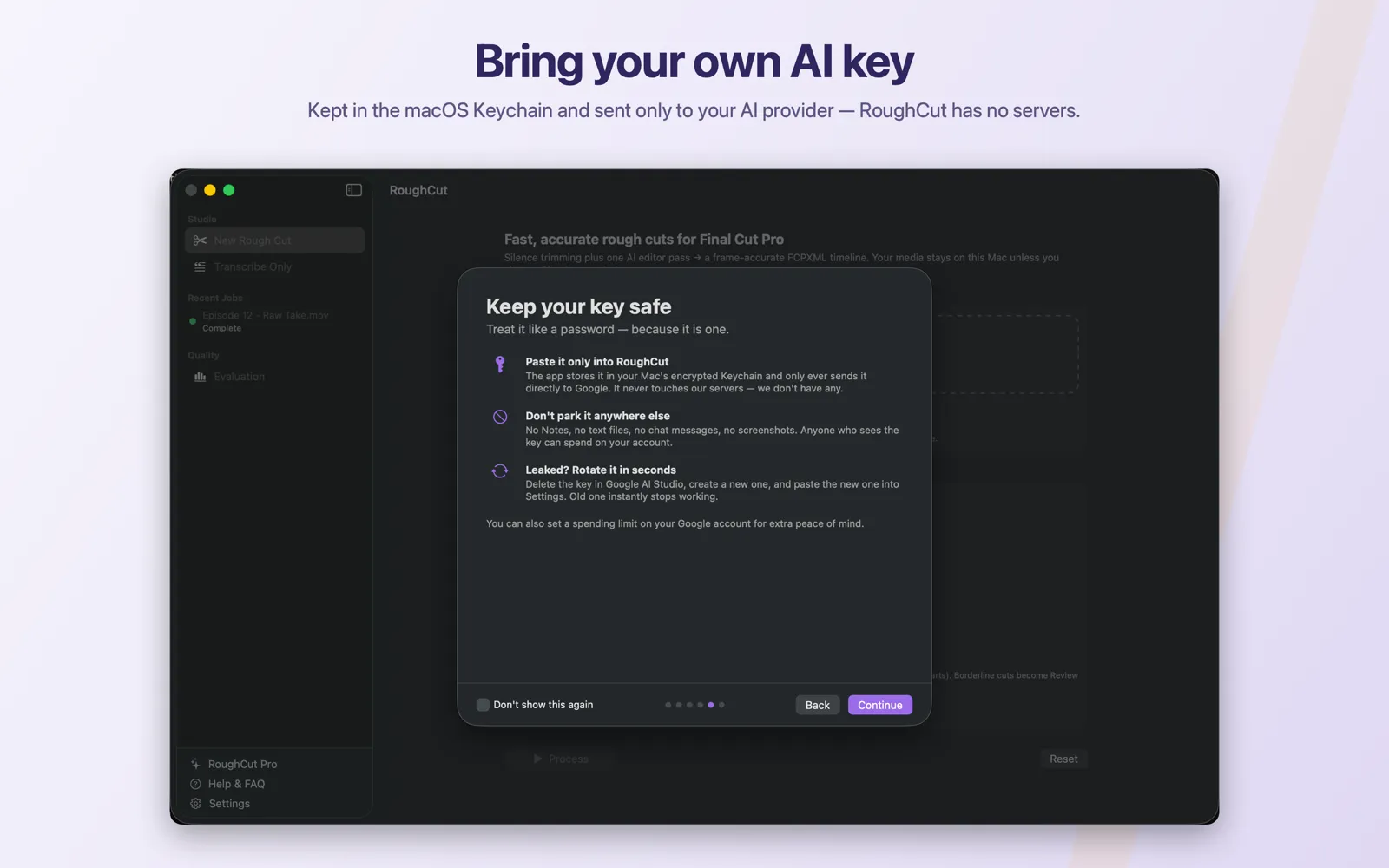
Gemini is RoughCut's default provider for the AI editing pass. You create a key in Google AI Studio, enable billing on the Google Cloud project behind it because RoughCut's default model is on a paid tier, then paste the key into RoughCut Settings where it is saved to the macOS Keychain. Test it with a short clip that has Bad-take removal enabled. Google bills your key directly at its published rates and RoughCut never sees your usage. Google's interface changes independently of RoughCut, so treat Google's own documentation as authoritative for the exact screens and follow the flow rather than the label wording.
On this page
Prerequisites
- A Google account.
- A payment method you are willing to attach to a Google Cloud project.
- RoughCut installed. You do not need the speech model for this step.
Google controls this flow and changes it from time to time. The steps below describe the current shape of the process; if a button is named differently, follow the equivalent action rather than looking for exact wording. Google's API key documentation and billing documentation are authoritative.
Steps
- Open Google AI Studio's API key page and sign in. RoughCut's welcome tour has an
Open Google AI Studiobutton that goes to the same place. - Create an API key. AI Studio either creates a Google Cloud project for you or asks you to pick an existing one.
- Enable billing on that project and add a payment method. RoughCut's default model is on Google's paid tier, so a key without billing will fail when the editing pass runs. This is the step people most often skip.
- Copy the key.
- In RoughCut, open
Settings. On theBasictab (orFull → LLM) findGemini API key. - Paste the key into the field and click its
Savebutton. RoughCut confirms withGemini API key saved to the Keychain. - Confirm
LLM provideris set togemini. It is the default. - Test it: create a short job with
Bad-take removalon. If the key and billing are correct, the job completes and the review list shows an editor summary naming the provider and model.
Expected result
The Gemini API key field shows a green confirmation with the value masked and the caption Saved in Keychain, plus Replace… and Remove buttons. A test job completes with AI-proposed cuts rather than a silence-only result.
Privacy and cost note
The key is stored in the macOS Keychain, encrypted by the system, and is sent only to Google. RoughCut has no servers in this path and never sees your usage or your bill.
Google bills your key at its published rates. Long recordings cost more, and Second Look adds another call. RoughCut does not publish a per-video figure because rates and model choices change.
Managing and rotating the key
- Replace swaps in a new key without exposing the old one.
- Remove deletes it from the Keychain. RoughCut then behaves as if no key exists: silence-only cuts still work, and
Bad-take removalfails preflight with a message telling you to add a key or turn the feature off. - If a key ever leaks, revoke it in Google AI Studio and create a new one. Rotation takes seconds and there is nothing to migrate.
Common mistakes
- Creating the key but not enabling billing. The key exists and looks valid, then the editing pass fails with a quota or billing error. Enable billing on the project the key belongs to.
- Enabling billing on a different project. AI Studio can create a new project silently; make sure billing is on the project that owns the key.
- Pasting a key with surrounding whitespace or quotes. Paste the raw value.
- Expecting the key to appear in a settings file. It never does — secrets live in the Keychain only, and are stripped before configuration is written to disk.
Troubleshooting
| Message or symptom | Likely cause | Fix |
|---|---|---|
No API key for provider 'gemini'. Add it in Settings, or disable bad-take removal for a silence-only cut. | No key saved | Save a key, or turn Bad-take removal off |
| Quota or billing error from Google | Billing not enabled on the key's project | Enable billing, then retry |
| Invalid or unauthorised key | Wrong value pasted, or key revoked | Create a new key and use Replace… |
| Model access denied | Your project cannot access the configured model | Check the model name in Settings → Full → LLM → Gemini model against what your project can call |
| Timeout | Very long transcript or a slow connection | The timeout is 600 seconds by default and configurable; retry, or split the recording |